



1 GPT 和 MBR 的分区标识
在 openEuler 操作系统中使用 GPT 分区表的磁盘和使用 MBR 分区表的磁盘有着不同的标识,可以通过多种命令来查看磁盘使用的是哪一种分区表
1.1 使用 fdisk -l 查看分区表类型
使用 fdisk -l 命令分别查看使用 MBR 和 GPT 分区表的磁盘信息。如下图所示:
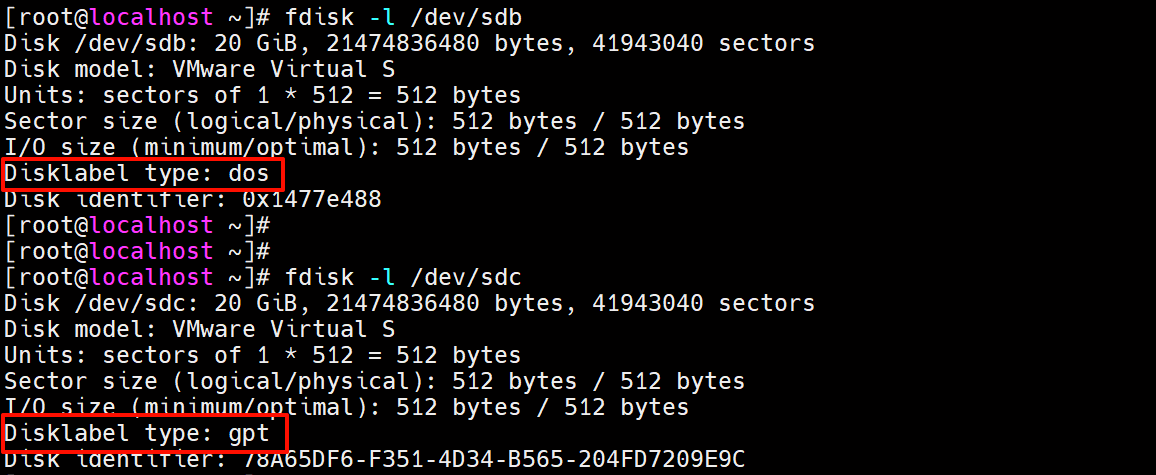
命令返回结果中,Disklabel type 字段的值即为磁盘分区表类型标识符:
- MBR 分区表的磁盘类型标识为:dos
- GPT 分区表的磁盘类型标识为:gpt
# 查看使用 MBR 分区表的磁盘
$ fdisk -l /dev/sdb
Disk /dev/sdb: 20 GiB, 21474836480 bytes, 41943040 sectors
Disk model: VMware Virtual S
Units: sectors of 1 * 512 = 512 bytes
Sector size (logical/physical): 512 bytes / 512 bytes
I/O size (minimum/optimal): 512 bytes / 512 bytes
Disklabel type: dos
Disk identifier: 0x2daef650

# 查看使用 GPT 分区表的磁盘
$ fdisk -l /dev/sdc
Disk /dev/sdc: 20 GiB, 21474836480 bytes, 41943040 sectors
Disk model: VMware Virtual S
Units: sectors of 1 * 512 = 512 bytes
Sector size (logical/physical): 512 bytes / 512 bytes
I/O size (minimum/optimal): 512 bytes / 512 bytes
Disklabel type: gpt
Disk identifier: ED7D3BC8-1214-42B3-80A5-1D163257A0C5
1.2 使用 parted 查看分区表类型
使用 parted 命令分别查看使用 MBR 和 GPT 分区表的磁盘信息。如下图所示:
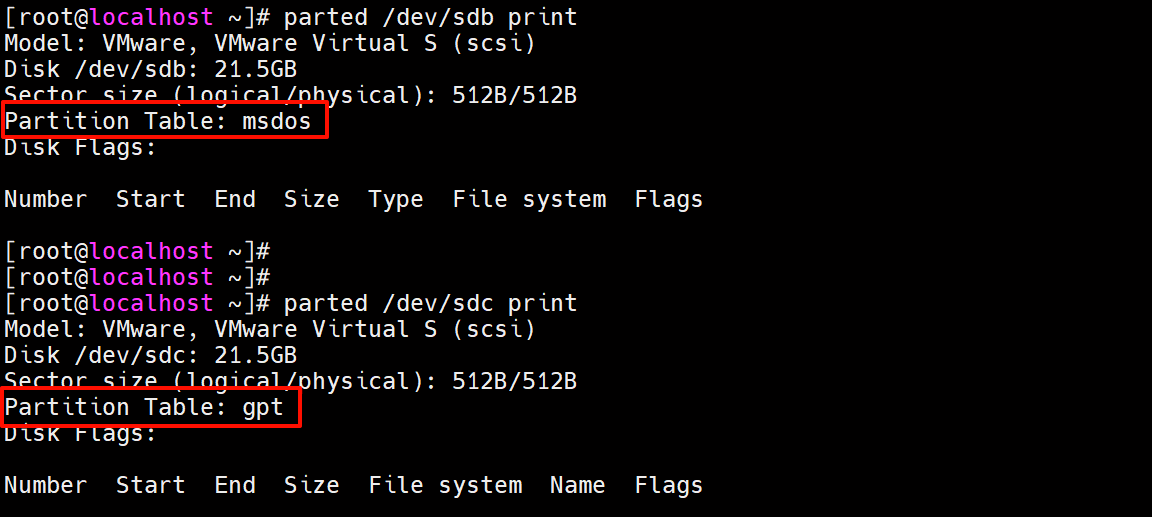
命令返回结果中,Partition Table 字段的值即为磁盘分区表类型标识符:
- MBR 分区表的磁盘类型标识为:msdos
- GPT 分区表的磁盘类型标识为:gpt
# 查看使用 MBR 分区表的磁盘
$ parted /dev/sdb print
Model: VMware, VMware Virtual S (scsi)
Disk /dev/sdb: 21.5GB
Sector size (logical/physical): 512B/512B
Partition Table: msdos
Disk Flags:

Number  Start  End  Size  Type  File system  Flags

# 查看使用 GPT 分区表的磁盘
$ parted /dev/sdc print
Model: VMware, VMware Virtual S (scsi)
Disk /dev/sdc: 21.5GB
Sector size (logical/physical): 512B/512B
Partition Table: gpt
Disk Flags:

Number  Start  End  Size  File system  Name  Flags
2 MBR 和 GPT 如何创建
2.1 如何创建 MBR 分区表
2.1.1 使用 fdisk 创建 MBR 分区表
只要使用 fdisk 命令对磁盘进行分区,那么就会自动创建 MBR 分区表,无需特殊操作,如下图所示:
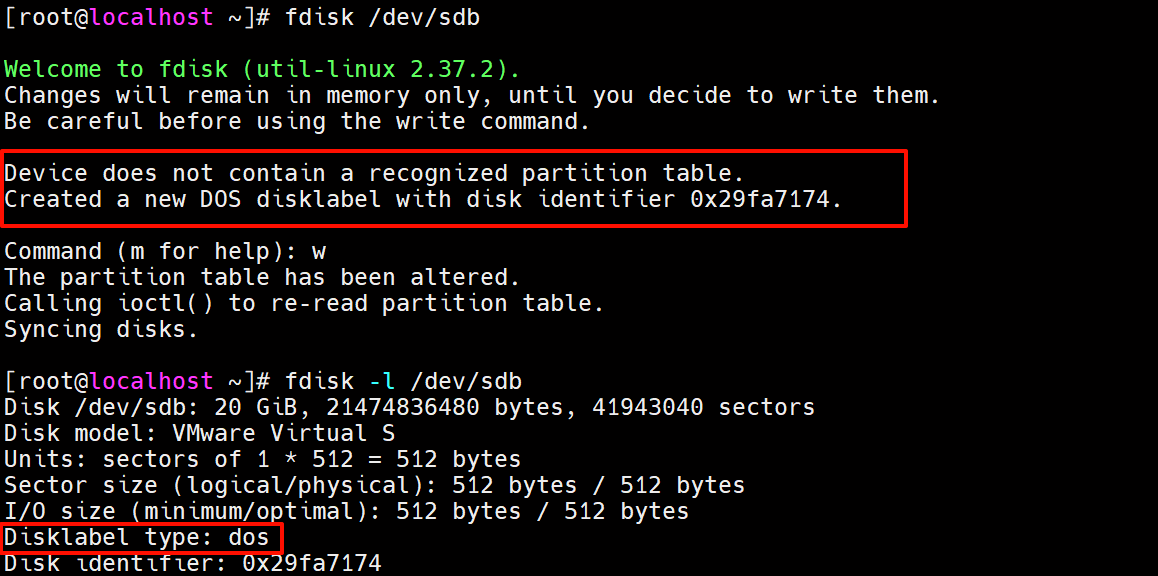
上图显示:“设备不包含可识别的分区表。创建了一个新的 DOS 磁盘标签,磁盘标识符为 0x29fa7174。”
# 使用 fdisk 对磁盘进行分区
$ fdisk /dev/sdb

Welcome to fdisk (util-linux 2.37.2).
Changes will remain in memory only, until you decide to write them.
Be careful before using the write command.

Device does not contain a recognized partition table.
Created a new DOS disklabel with disk identifier 0x29fa7174.

Command (m for help): w
The partition table has been altered.
Calling ioctl() to re-read partition table.
Syncing disks.

# 查看磁盘分区表类型
$ fdisk -l /dev/sdb
Disk /dev/sdb: 20 GiB, 21474836480 bytes, 41943040 sectors
Disk model: VMware Virtual S
Units: sectors of 1 * 512 = 512 bytes
Sector size (logical/physical): 512 bytes / 512 bytes
I/O size (minimum/optimal): 512 bytes / 512 bytes
Disklabel type: dos
Disk identifier: 0x29fa7174
2.1.2 使用 parted 创建 MBR 分区表
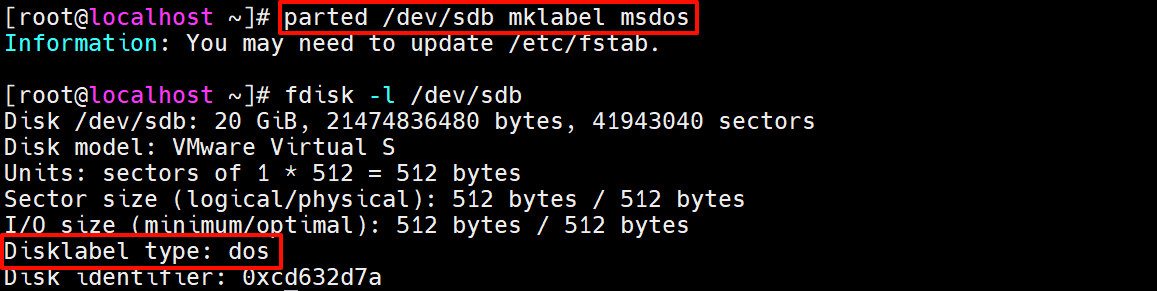
执行 parted DISK mklabel msdos 命令即可创建 MBR 分区表,如下图所示:
# 创建 MBR 分区表
$ parted /dev/sdb mklabel msdos
Information: You may need to update /etc/fstab.

# 查看磁盘信息
$ fdisk -l /dev/sdb
Disk /dev/sdb: 20 GiB, 21474836480 bytes, 41943040 sectors
Disk model: VMware Virtual S
Units: sectors of 1 * 512 = 512 bytes
Sector size (logical/physical): 512 bytes / 512 bytes
I/O size (minimum/optimal): 512 bytes / 512 bytes
Disklabel type: dos
Disk identifier: 0xcd632d7a
2.2 如何创建 GPT 分区表
2.2.1 使用 gdisk 创建 GPT 分区表
只要使用 gdisk 命令对磁盘进行分区,那么就会自动创建 MBR 分区表,无需特殊操作,如下图所示:
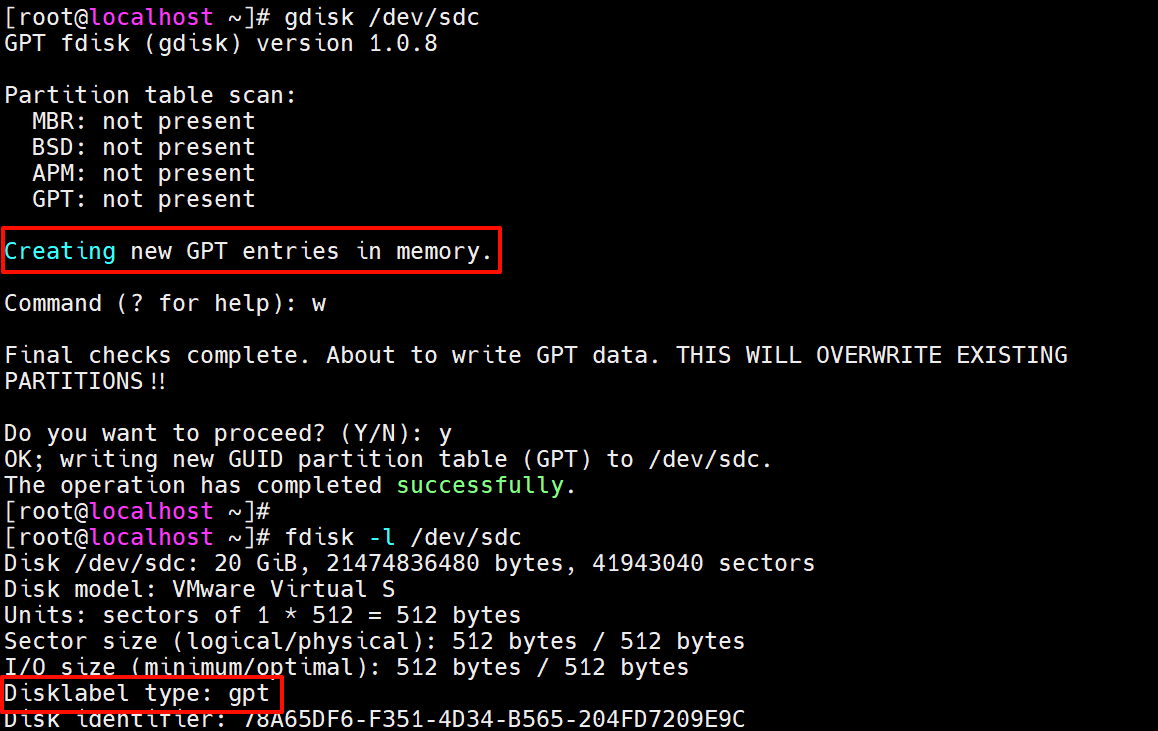
上图显示:“在内存中创建新的 GPT 条目”,在保存后会把 gpt 分区表写入到磁盘中
# 使用 gdisk 对磁盘进行分区
$ gdisk /dev/sdc
GPT fdisk (gdisk) version 1.0.8

Partition table scan:
  MBR: not present
  BSD: not present
  APM: not present
  GPT: not present

Creating new GPT entries in memory.

Command (? for help): w

Final checks complete. About to write GPT data. THIS WILL OVERWRITE EXISTING
PARTITIONS!!

Do you want to proceed? (Y/N): y
OK; writing new GUID partition table (GPT) to /dev/sdc.
The operation has completed successfully.

# 查看磁盘分区表类型
$ fdisk -l /dev/sdc
Disk /dev/sdc: 20 GiB, 21474836480 bytes, 41943040 sectors
Disk model: VMware Virtual S
Units: sectors of 1 * 512 = 512 bytes
Sector size (logical/physical): 512 bytes / 512 bytes
I/O size (minimum/optimal): 512 bytes / 512 bytes
Disklabel type: gpt
Disk identifier: 78A65DF6-F351-4D34-B565-204FD7209E9C
2.2.2 使用 parted 创建 GPT 分区表
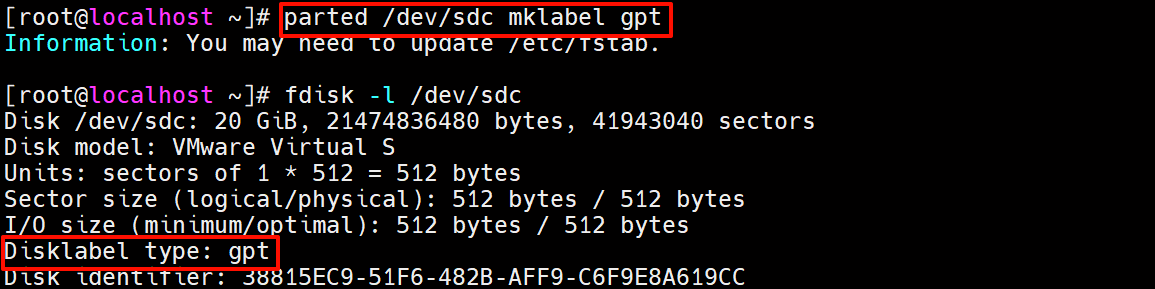
执行 parted DISK mklabel gpt 命令即可创建 GPT 分区表,如下图所示:
# 创建 GPT 分区表
$ parted /dev/sdc mklabel gpt
Information: You may need to update /etc/fstab.

# 查看磁盘信息
$ fdisk -l /dev/sdc
Disk /dev/sdc: 20 GiB, 21474836480 bytes, 41943040 sectors
Disk model: VMware Virtual S
Units: sectors of 1 * 512 = 512 bytes
Sector size (logical/physical): 512 bytes / 512 bytes
I/O size (minimum/optimal): 512 bytes / 512 bytes
Disklabel type: gpt
Disk identifier: 38815EC9-51F6-482B-AFF9-C6F9E8A619CC
3 MBR 和 GPT 如何转换
3.1 MBR 分区表转换为 GPT 分区表
现有一块使用 MBR 分区表的磁盘,如下图所示:

要将其转换为 GPT 分区表,该如何操作呢?只需要使用 gdisk 命令对该磁盘进行分区即可,会自动创建 GPT 分区表,如下图所示:
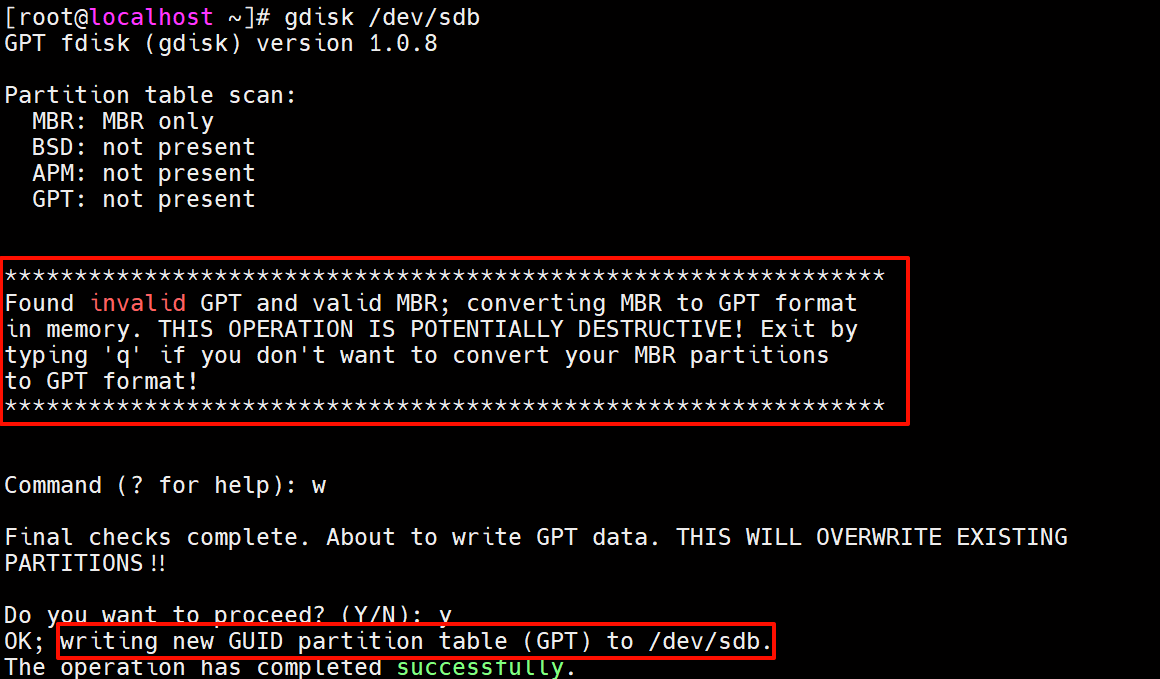
上图显示,使用 gdisk 命令对使用 MBR 分区表的磁盘进行分区时,会弹出如下提醒:“发现无效的GPT和有效的MBR;在内存中将MBR转换为GPT格式。此操作具有潜在的破坏性!如果您不想将MBR分区转换为GPT格式,请键入'q'退出!”,在保存后会把 gpt 分区表写入到磁盘中
现在磁盘分区表已经变为 GPT:

# 当前磁盘分区表类型为 MBR
$ fdisk -l /dev/sdb
Disk /dev/sdb: 20 GiB, 21474836480 bytes, 41943040 sectors
Disk model: VMware Virtual S
Units: sectors of 1 * 512 = 512 bytes
Sector size (logical/physical): 512 bytes / 512 bytes
I/O size (minimum/optimal): 512 bytes / 512 bytes
Disklabel type: dos
Disk identifier: 0x1477e488

# 使用 gdisk 命令重新对磁盘分区
$ gdisk /dev/sdb
GPT fdisk (gdisk) version 1.0.8

Partition table scan:
  MBR: MBR only
  BSD: not present
  APM: not present
  GPT: not present


***************************************************************
Found invalid GPT and valid MBR; converting MBR to GPT format
in memory. THIS OPERATION IS POTENTIALLY DESTRUCTIVE! Exit by
typing 'q' if you don't want to convert your MBR partitions
to GPT format!
***************************************************************


Command (? for help): w

Final checks complete. About to write GPT data. THIS WILL OVERWRITE EXISTING
PARTITIONS!!

Do you want to proceed? (Y/N): y
OK; writing new GUID partition table (GPT) to /dev/sdb.
The operation has completed successfully.

# 重新查看磁盘分区表类型
$ fdisk -l /dev/sdb
Disk /dev/sdb: 20 GiB, 21474836480 bytes, 41943040 sectors
Disk model: VMware Virtual S
Units: sectors of 1 * 512 = 512 bytes
Sector size (logical/physical): 512 bytes / 512 bytes
I/O size (minimum/optimal): 512 bytes / 512 bytes
Disklabel type: gpt
Disk identifier: 04A53C43-1618-4ECE-9E29-8192A6B440C2
3.2 GPT 分区表转换为 MBR 分区表
现有一块使用 GPT 分区表的磁盘,如下图所示:

要将其转换为 MBR 分区表,该如何操作呢?使用 fdisk 命令对该磁盘进行分区,输出 "o" 命令创建一个 DOS 分区表,如下图所示:
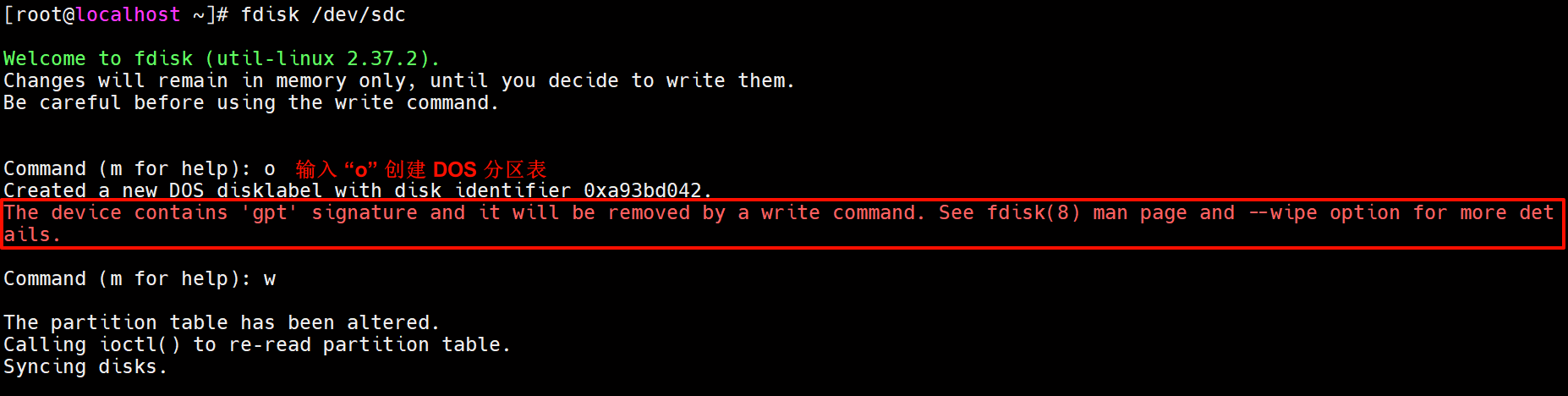
上图显示,使用 fdisk 命令对使用 GPT 分区表的磁盘进行分区时,使用 o 命令创建 DOS 分区表时会弹出如下提醒:“该设备包含“gpt”签名,将通过写入命令将其删除。”,在保存后会把 mbr 分区表写入到磁盘中
现在磁盘分区表已经变为 MBR:

# 当前磁盘分区表类型为 MBR
fdisk -l /dev/sdc
Disk /dev/sdc: 20 GiB, 21474836480 bytes, 41943040 sectors
Disk model: VMware Virtual S
Units: sectors of 1 * 512 = 512 bytes
Sector size (logical/physical): 512 bytes / 512 bytes
I/O size (minimum/optimal): 512 bytes / 512 bytes
Disklabel type: gpt
Disk identifier: 78A65DF6-F351-4D34-B565-204FD7209E9C

# 使用 fdisk 命令重新对磁盘分区
$ fdisk /dev/sdc

Welcome to fdisk (util-linux 2.37.2).
Changes will remain in memory only, until you decide to write them.
Be careful before using the write command.


Command (m for help): o
Created a new DOS disklabel with disk identifier 0xa93bd042.
The device contains 'gpt' signature and it will be removed by a write command. See fdisk(8) man page and --wipe option for more details.

Command (m for help): w

The partition table has been altered.
Calling ioctl() to re-read partition table.
Syncing disks.

# 重新查看磁盘分区表类型
$  fdisk -l /dev/sdc
Disk /dev/sdc: 20 GiB, 21474836480 bytes, 41943040 sectors
Disk model: VMware Virtual S
Units: sectors of 1 * 512 = 512 bytes
Sector size (logical/physical): 512 bytes / 512 bytes
I/O size (minimum/optimal): 512 bytes / 512 bytes
Disklabel type: dos
Disk identifier: 0xa93bd042

评论